Keyboard Configuration in GNU/Linux
- Different Keyboards and Layouts
- Keyboard Configuration in tty
- Keyboard Configuration in X11
- Swaywm on Wayland
- Creating a Custom keymap
Using two languages simultaneously is a necessity for Persian-speaking computer users. Persian language support in GNU/Linux has been available for a long time and has consistently maintained better standards than Windows. Still, further personalization always leads to a more pleasant computing experience. Using two languages simultaneously, combined with the lack of a single standard for Persian typing, causes Persian-speaking users to occasionally encounter problems that English-speaking users never face. A while ago, a friend was looking for a way to add a specific character to their keyboard. Their inability to find a suitable guide prompted me to write about this topic.
Here I try to write about keyboard configuration in the tty console environment and graphical environments X11 and the Sway window manager on Wayland. Keyboard configuration on Wayland depends on the compositor you’re using, but most of what is discussed here can also be applied on other Wayland compositors, especially those based on wlroots.
Different Keyboards and Layouts
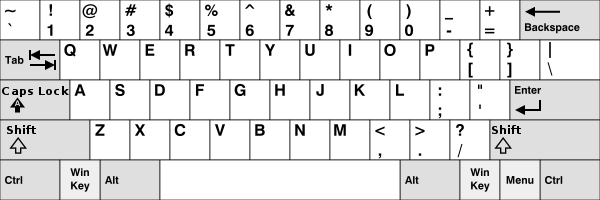
Most of us use the English and Persian QWERTY layout on our keyboards, an example of which can be seen in the image below.
But there are other layouts for QWERTY keyboards depending on the language. For example, the French AZERTY keyboard, which makes changes to the English QWERTY layout for better compatibility with the French language:
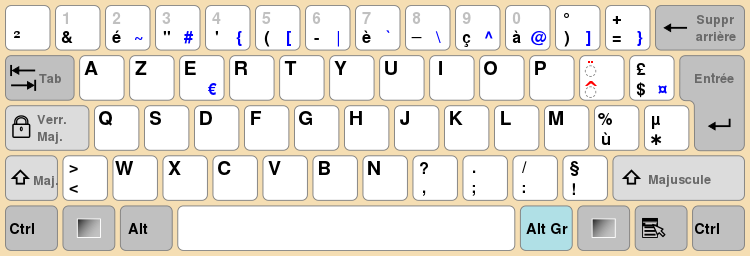
For more information, you can read the relevant page on Wikipedia.
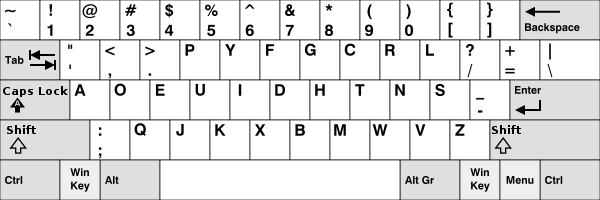
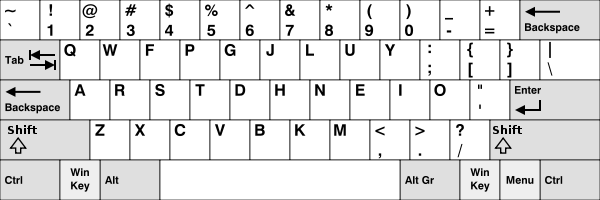
There are also other English keyboard layouts, of which DVORAK and COLEMAK are the most well-known.
Example of the DVORAK keyboard:
Example of the COLEMAK keyboard:
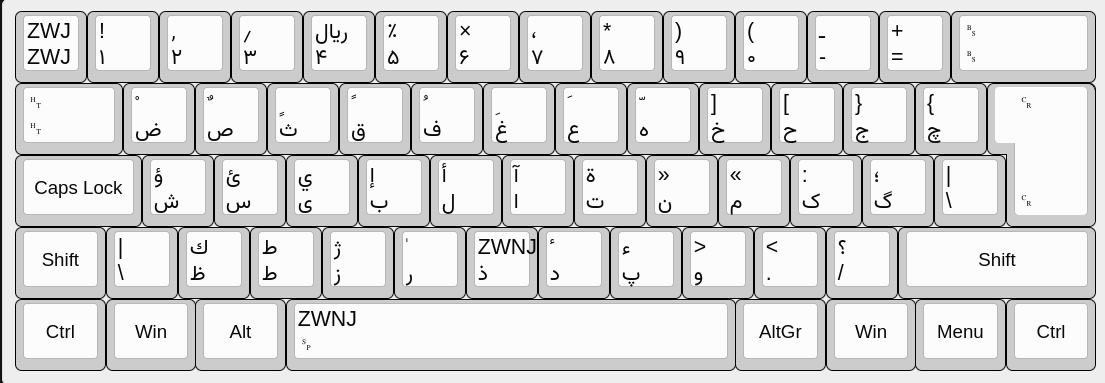
The standard Persian keyboard is also classified as a QWERTY keyboard, with the following key layout:
Keyboard Configuration in tty
You may rarely need to change keyboard settings in the console (tty) environment. Most of us use the default English QWERTY layout. However, as mentioned, other layouts exist for English as well. This is one reason you might want to use a different layout in the console.
If you use Systemd as your init system, you can see a list of available layouts with localectl list-keymaps. For me, this command shows 232 different keyboards.
$ localectl list-keymaps | wc -l
232
You can also search for a specific keyboard using grep:
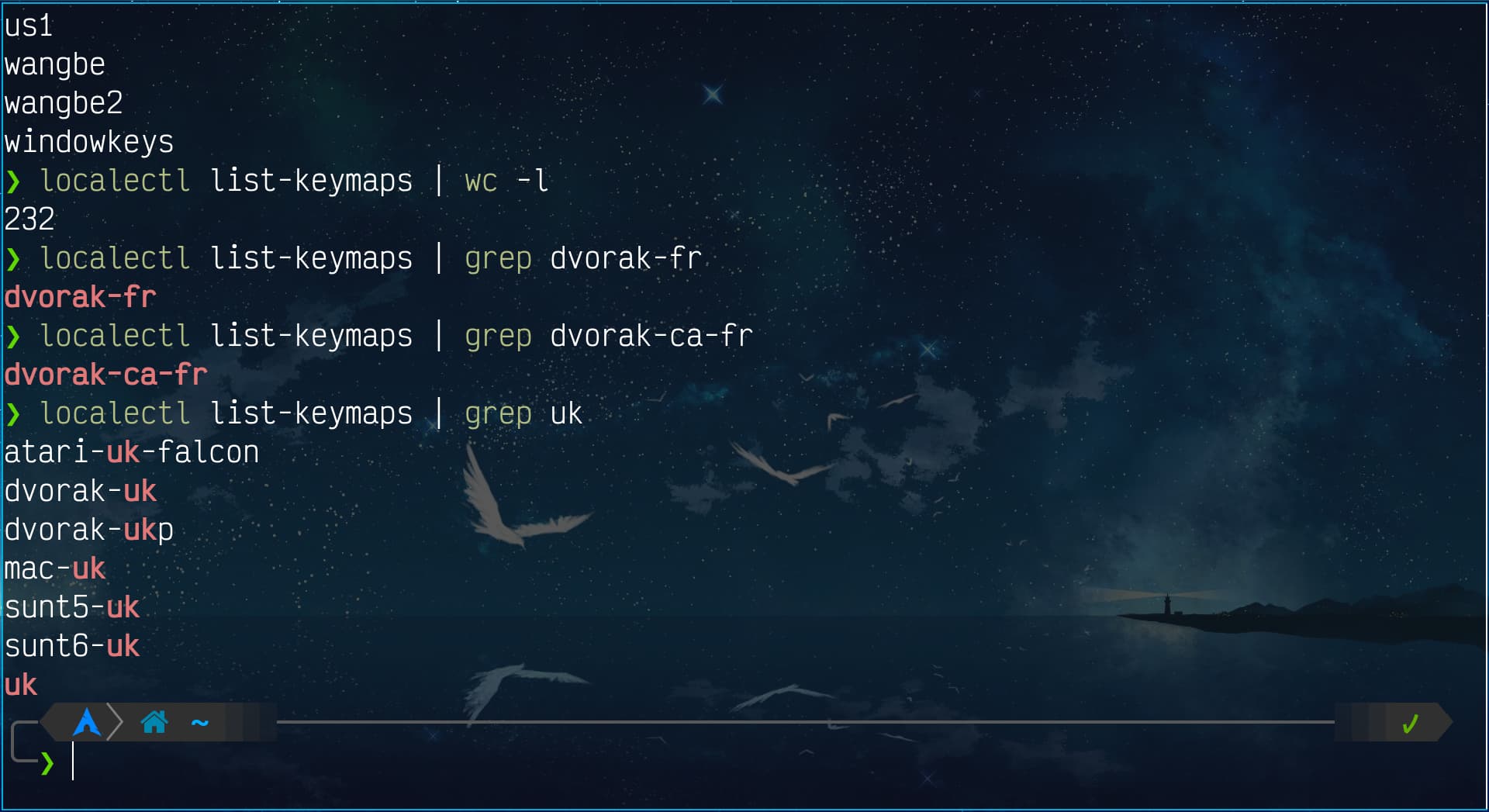
If you don’t use Systemd, the find command can give you a list of available keyboards. The output for me looks like this:
$ find /usr/share/kbd/keymaps/ -type f -name "*"
/usr/share/kbd/keymaps/amiga/amiga-de.map.gz
/usr/share/kbd/keymaps/amiga/amiga-us.map.gz
...
To find a specific keyboard, replace * with the search term surrounded by * characters:
$ find /usr/share/kbd/keymaps/ -type f -name "*uk*"
/usr/share/kbd/keymaps/atari/atari-uk-falcon.map.gz
/usr/share/kbd/keymaps/i386/dvorak/dvorak-uk.map.gz
/usr/share/kbd/keymaps/i386/dvorak/dvorak-ukp.map.gz
/usr/share/kbd/keymaps/i386/qwerty/uk.map.gz
/usr/share/kbd/keymaps/mac/all/mac-uk.map.gz
/usr/share/kbd/keymaps/sun/sunt5-uk.map.gz
/usr/share/kbd/keymaps/sun/sunt6-uk.map.gz
To set your desired keyboard, use the loadkeys command. Note that running this command requires root access:
$ sudo loadkeys fr
$ sudo loadkeys i386/azerty/fr.map.gz
You can use either the keyboard name or the full path to the keymap file. The keyboard you choose must be suitable for the console and its characters must be supported. If you try to set the Persian keyboard for the console, you will encounter an error:
$ sudo loadkeys fa
unicode keysym out of range: U+FDFC
syntax error, unexpected ERROR, expecting NUMBER or LITERAL or PLUS or UNUMBER
To make these settings permanent, you can use the KEYMAP keyword in the /etc/vconsole.conf file.
$ cat /etc/vconsole.conf
FONT=ter-224b
KEYMAP=us
Keyboard Configuration in X11
setxkbmap
For configuring the keyboard in graphical environments that use X11 server, each environment like GNOME or KDE has its own dedicated program. A more general and simpler way is to use the setxkbmap command.
I use this command as follows:
$ setxkbmap -model thinkpad us,ir -option "grp:shifts_toggle,caps:escape_shifted_capslock,altwin:prtsc_rwin,lv3:ralt_switch"Keyboard configuration with setxkbmap has three parts:
- Keyboard model: you can specify your keyboard model with
-model <YOUR-KEYBOARD-MODEL>. - layout[s]: you can configure any number of available layouts for use with the keyboard. Note that you must use
,to separate their names. - Special options: you can specify special keyboard options with
-options <YOUR-KEYBOARD-OPTIONS>.
In the command I use, I’ve set the keyboard model to thinkpad and configured both English and Persian.
In the special options section, using grp:shifts_toggle I’ve specified that switching between keyboard languages is done by pressing both Shift keys simultaneously.
It may seem unusual, but for me — since my hands are almost always on the keyboard — it’s more convenient than using Alt+Shift. I also have other keys for switching keyboard language so I can switch with one hand if needed.
With caps:escape_shifted_capslock I’ve specified that the CapsLock key acts as the Escape key.
I use the Vim editor for editing text files and frequently use the Escape key to exit various modes. The standard location of this key at the top-left corner of the keyboard is far from reach. Mapping CapsLock as Escape makes it much easier for me to use.
The next option is altwin:prtsc_rwin which specifies that the PrintScreen (PrtSc) key — located next to the right Alt key on my laptop keyboard — acts as a second Meta or Mod key (the Win logo key).
For years I have not used desktop environments on my computer, preferring window managers instead, which are lighter and more customizable. Most of my keyboard shortcuts are in the form Mod+<SOME-KEY>, and there are many of them. Having the Mod key on both sides of the keyboard makes using these shortcuts more comfortable.
Finally, lv3:ralt_switch specifies that layer 3 of the keyboard can be accessed using the right Alt key. As you know, each language on the keyboard has more than one layer of characters. In almost all cases, you can type layer 2 characters using the Shift key. For English these are uppercase letters and some other commonly used characters. For Persian on the standard keyboard, ژ is on the second layer of the ز key. Some other common characters are also on this layer, including ZWNJ (zero-width non-joiner). Interestingly, some less-used characters are on layer 3 and below. NBSP (non-breaking space) is one of them, located on layer 3 of the space key. I use the right Alt key to access this layer.
An important question is where to find a list of models, layouts, and special options. Simply open the documentation with man xkeyboard-config in your terminal and read it. You’ll find a comprehensive list of all options with clear explanations for each. Searching man xkeyboard-config <YOUR-DISTRIBUTION> in your browser will also find the documentation for your distribution. For example, for Arch Linux.
Of course, to find layouts you can also look in /usr/share/X11/xkb/symbols.
$ ls /usr/share/X11/xkb/symbolsThe next question is how to make these settings permanent. I use the xorg-xinit package to start the X11 graphical environment and run the startx command directly from the console without using a Display Manager. When this command is run, it reads graphical environment settings from text files. One of these files is .xinitrc in the $HOME directory. I simply put any command I need to set up my graphical environment in a file and call it from inside .xinitrc. I’ve placed these commands in the .xprofile file in the $HOME directory.
$ cat ~/.xinitrc
#!/bin/sh

# xinitrc runs automatically when you run startx.

# There are some small but important commands that need to be run when we start
# the graphical environment. I keep those commands in ~/.xprofile because that
# file is run automatically if someone uses a display manager (login screen)
# and so they are needed there. To prevent doubling up commands, I source them
# here with the line below.

[ -f ~/.xprofile ] && . ~/.xprofile

# Fix Gnome Apps Slow  Start due to failing services
# Add this when you include flatpak in your system
dbus-update-activation-environment --systemd DBUS_SESSION_BUS_ADDRESS DISPLAY XAUTHORITY

# Here we start dwm.
# The loop is just to enable dwm's "restart" feature (mod+F2).
#exec dwm
ssh-agent dwm

$ cat ~/.xprofile
#!/usr/bin/sh

xset r rate 300 50 &    # Speed xrate up
unclutter &     # Remove mouse when idle
#xcompmgr &     # xcompmgr for transparency
picom --config ~/.config/picom/picom.conf &
dunst &                 # dunst for notifications
#keymap &       # some keyboard remap
mpd &
xrdb ~/.Xdefaults &
setbg &
setxkbmap -model thinkpad us,ir -option "grp:shifts_toggle,caps:escape_shifted_capslock,altwin:prtsc_rwin,lv3:ralt_switch" &
As you can see, the keyboard settings are specified in the last line of the file. Each Display Manager has configuration files that it calls before the graphical environment starts. You can find the path to these files by searching online and place the keyboard settings in them so they’re applied automatically.
xmodmap
xmodmap is a tool for editing key layouts on the keyboard in X11. You may need to swap two keys on the keyboard and that option may not be available among setxkbmap choices. For this, you can use xmodmap:
$ xmodmap -e 'keycode 135 = Super_R'The above command converts the Menu key to the Super key, similar to what setxkbmap -option altwin:menu_win does. To find the code for each physical key on the keyboard, you can view the current keyboard layout list using xmodmap -pk.
$ xmodmap -pk
There are 10 KeySyms per KeyCode; KeyCodes range from 8 to 255.

    KeyCode Keysym (Keysym) ...
    Value   Value   (Name)  ...

      8
      9     0xff1b (Escape) ...
     10     0x0031 (1)  0x0021 (exclam) 0x10006f1 (Farsi_1) ...
...
The xmodmap -pke command gives you this list in a format usable by xmodmap.
A list of key names usable with xmodmap can be found on this page.
To find the code for a specific key, you can use xev. Simply run xev in the terminal and press the desired key to see its data.
$ xev | awk -F'[ )]+' '/^KeyPress/ { a[NR+2] } NR in a { printf "%-3s %s\n", $5, $8 }'
44  j
45  k
133 Super_L
There are many tools for working with the keyboard in X11 server. For example, xset -q gives you information about the current configuration state:
$ xset -q
Keyboard Control:
  auto repeat:  on    key click percent:  0    LED mask:  00000000
  XKB indicators:
    00: Caps Lock:   off    01: Num Lock:    off    02: Scroll Lock: off
  auto repeat delay:  300    repeat rate:  50
...
You can use it to check key states in scripts and configurations. You can also use xdotool to set the state of keyboard and mouse keys and the cursor position. xdotool is a tool for simulating input events in the X11 server environment.
$ xset -q | grep "Caps Lock:\s*on" && xdotool key Caps_LockThe above command checks the state of CapsLock and disables it if it is active.
Swaywm on Wayland
Keyboard configuration in the Wayland environment is the responsibility of the compositor, and there is no single tool or uniform method for doing it. Compositors on Wayland receive inputs without an intermediary layer and get data at a lower level from the kernel’s APIs.
Keyboard configuration in Swaywm is done in this window manager’s configuration file. By default this file is at /etc/sway/config. If a configuration file exists at ~/.config/sway/config, that file takes higher priority.
My keyboard configuration for Swaywm in this file looks like this:
# Use `man xkeyboard-config` to view the options and `setxkbmap -query|print` to check the model
input {
    type:keyboard {
        xkb_layout "us,ir"
        xkb_model "thinkpad"
        xkb_options "caps:escape_shifted_capslock,grp:shifts_toggle,altwin:prtsc_rwin,lv3:ralt_switch"
    }

    type:touchpad {
        # no click needed
        tap enabled
        # disable touchpad while typing
        dwt enabled
        # natural_scroll enabled
        middle_emulation enabled
    }
}
Which are the same settings I had for the X11 server.
Tools like xmodmap, setxkbmap, xset, xev, and xdotool cannot be used on Wayland. The Swaywm wiki has a page about alternatives for common tools used in X11, which is a good guide. You can also visit this GitHub page to find more tools for Wayland.
Instead of xev you can use wev, and instead of xdotool you can use wtype, wlrctl, swaymsg seat <seat> cursor …, or ydotool. However, no replacement for xmodmap has been introduced — instead, a custom layout can be used.
Creating a Custom keymap
Even in the X11 environment, applying keyboard settings permanently using the tools we’ve discussed may not fully meet all your needs. Creating a keymap tailored to your personal needs gives you the ability to make any change to the character layout.
Before going further, let me describe the problem that prompted writing this post. A friend on Mastodon was looking for a way to replace / with the character ۀ on the Persian layout. This character is not on the standard Persian keyboard and is an Arabic character. Its correct form in Persian is written by combining the two characters ه and _ٔ. However, due to printing limitations, they were forced to use this character.
The best way to create a custom keymap is to use one of the existing files in /usr/share/X11/xkb/symbols and edit it.
For example, the file for the Persian keymap has this pattern:
$ cat /usr/share/X11/xkb/symbols/ir
// Iranian keyboard layout
...
default partial alphanumeric_keys
xkb_symbols "pes" {
    name[Group1]= "Persian";

    include "ir(pes_part_basic)"
    include "ir(pes_part_ext)"

    include "nbsp(zwnj2nb3nnb4)"
    include "level3(ralt_switch)"
};
...
In this file, the characters for each key are specified in an array corresponding to the different layers of that key. The row we’re interested in is key <AB10> { [ slash, Arabic_question_mark, question ] };. This means: pressing AB10 (the / key) types /; pressing it with Shift types ؟; and on layer 3 (with my configuration, using the right Alt key) it types ?.
To apply the change and create our custom keymap, we make a copy of this file and apply the changes to it. We can then use this custom layout.
The Unicode code for the character ۀ is U+06C0, which in this file should be written as 0x10006c0, following the same format as other Unicode characters:
$ sudo cp /usr/share/X11/xkb/symbols/{ir,ir.bak}

$ cat /usr/share/X11/xkb/symbols/ir | grep -n slash
89:    key <AB10> { [ slash,        Arabic_question_mark,   question    ] };
94:    key <BKSL> { [ backslash,        bar,            0x1002010   ] };

$ sudo sed -i 's/\[ slash,/\[ 0x10006c0,/' /usr/share/X11/xkb/symbols/my-ir

$ cat /usr/share/X11/xkb/symbols/ir | grep -n 0x10006c0
89:    key <AB10> { [ 0x10006c0,        Arabic_question_mark,   question    ] };
To find the name or code of Unicode characters, you can visit this website.
Although editing files in /usr/share/X11/xkb/symbols allows you to customize your keymap, since libxkbcommon 0.10.0 it has been possible to create personal configuration files in $XDG_CONFIG_HOME/xkb and in the folders $XDG_CONFIG_HOME/xkb/rules/ and $XDG_CONFIG_HOME/xkb/symbols. Files in this path are loaded before the default files.
For example, to add an option to replace the PrtSc key with the Menu key, we create and configure the files $XDG_CONFIG_HOME/xkb/rules/evdev and $XDG_CONFIG_HOME/xkb/symbols/custom as follows:
$ mkdir -p ~/.config/xkb/{symbols,rules}
$ cd ~/.config/xkb
$ cat > rules/evdev << EOF
! option = symbols
  custom:prtscmenu = +custom(prtscmenu)

! include %S/evdev
EOF
$ cat > symbols/custom << EOF
partial modifier_keys
xkb_symbols "prtscmenu" {
  key <PRSC> { [ Menu ] };
};
EOF
Then we need to enable/disable this option. For GNOME:
# apply custom layout:
$ gsettings set org.gnome.desktop.input-sources xkb-options "['custom:prtscmenu']"
# disable custom layout:
$ gsettings set org.gnome.desktop.input-sources xkb-options "[]"
Or to create the custom layout we made earlier:
$ cat > ~/.config/xkb/symbols/ir-mz << EOF
default partial alphanumeric_keys
xkb_symbols "basic" {
    include "ir(pes)"
    include "level3(caps_switch)"
    name[Group1] = "Persian (IR, my custom)";
    key <AB10> { [ 0x10006c0, Arabic_question_mark, question ] };
};
EOF
I use the following file to swap the چ character (which is less commonly needed in certain workflows) with / in the standard Persian keyboard:
$ cat ~/.config/xkb/symbols/ir-mz
default partial alphanumeric_keys
xkb_symbols "basic" {
    include "ir(pes)"
    name[Group1]= "Persian (IR, my custom layout)";
    key <AB10> { [ Arabic_tcheh,		Arabic_question_mark,	question	] };
    key <AD12> { [ slash,	braceleft,		0x100202b	] };
};
To use this layout in Swaywm, add input type:keyboard xkb_layout ir-mz to the configuration file, or use this command:
swaymsg input "$(swaymsg -t get_inputs | grep 'identifier.*keyboard' | cut -d'"' -f4)" xkb_layout ir-mzAs mentioned, these settings are loaded and applied before the default paths. For more information, you can read this page.
Comments
You can view the comments for this post on Mastodon here . Click the link below to write a comment.